On the “Cost center rules” page you decide which cost center completed work gets automatically, so that workers do not have to choose it themselves. For example, when a worker does “Rolling” on a particular workobject, the work gets the cost center linked to the rule. The page is used by the administrator. The list, archiving and “Bulk edit parameters” are described in general on the Admin Settings page.
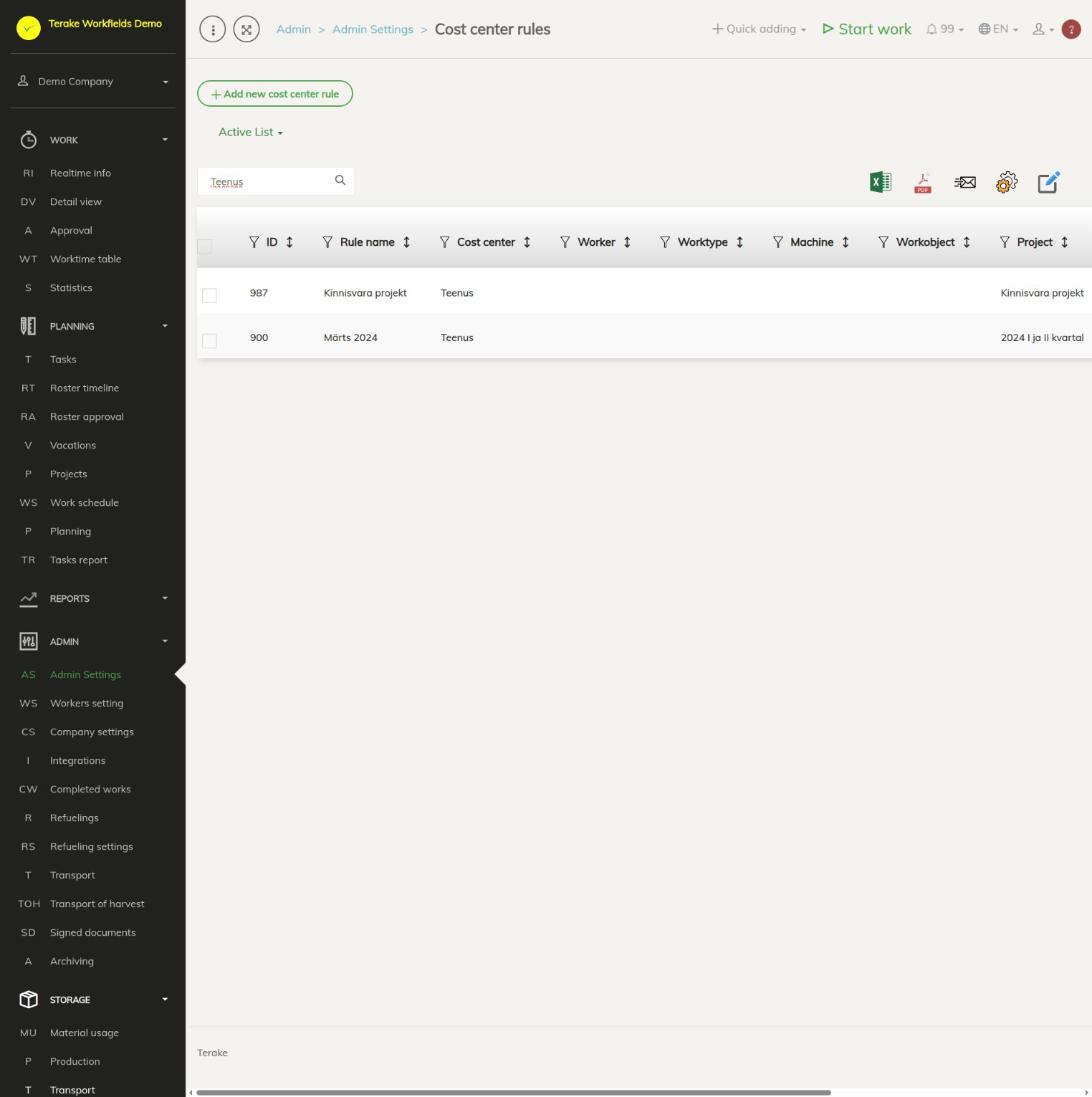
Page layout
- The “Add new cost center rule” button and the “Active list” / “Archived list” drop-down.
- The table shows each rule’s “Rule name”, “Cost center” and conditions: “Worker”, “Worktype”, “Machine”, “Workobject”, “Project”, for agricultural companies also “Crop”, plus “Archived” and “Execution priority”.
- With “Bulk edit parameters” you can archive or delete the ticked rules at once.
How to add or change a rule
- Press “Add new cost center rule” or click the row of an existing rule.
- Enter the “Rule name” (mandatory), for example after the cost center and the condition, so that you recognise the rule in the list.
- Under “Worker”, tick the workers whose work the rule applies to. If you tick no workers, the rule applies to the work of all workers.
- Select the “Cost center” (mandatory): the cost center that matching work gets.
- Select the conditions: “Worktype”, “Machine”, “Place of work” (a workobject or a field), “Project” and, for agricultural companies, “Crop”. An empty condition matches any value; all filled conditions must match the work at the same time.
- Select the “Execution priority” (1–10, default 1).
- Press “Save” (the window stays open) or “Save and close”.
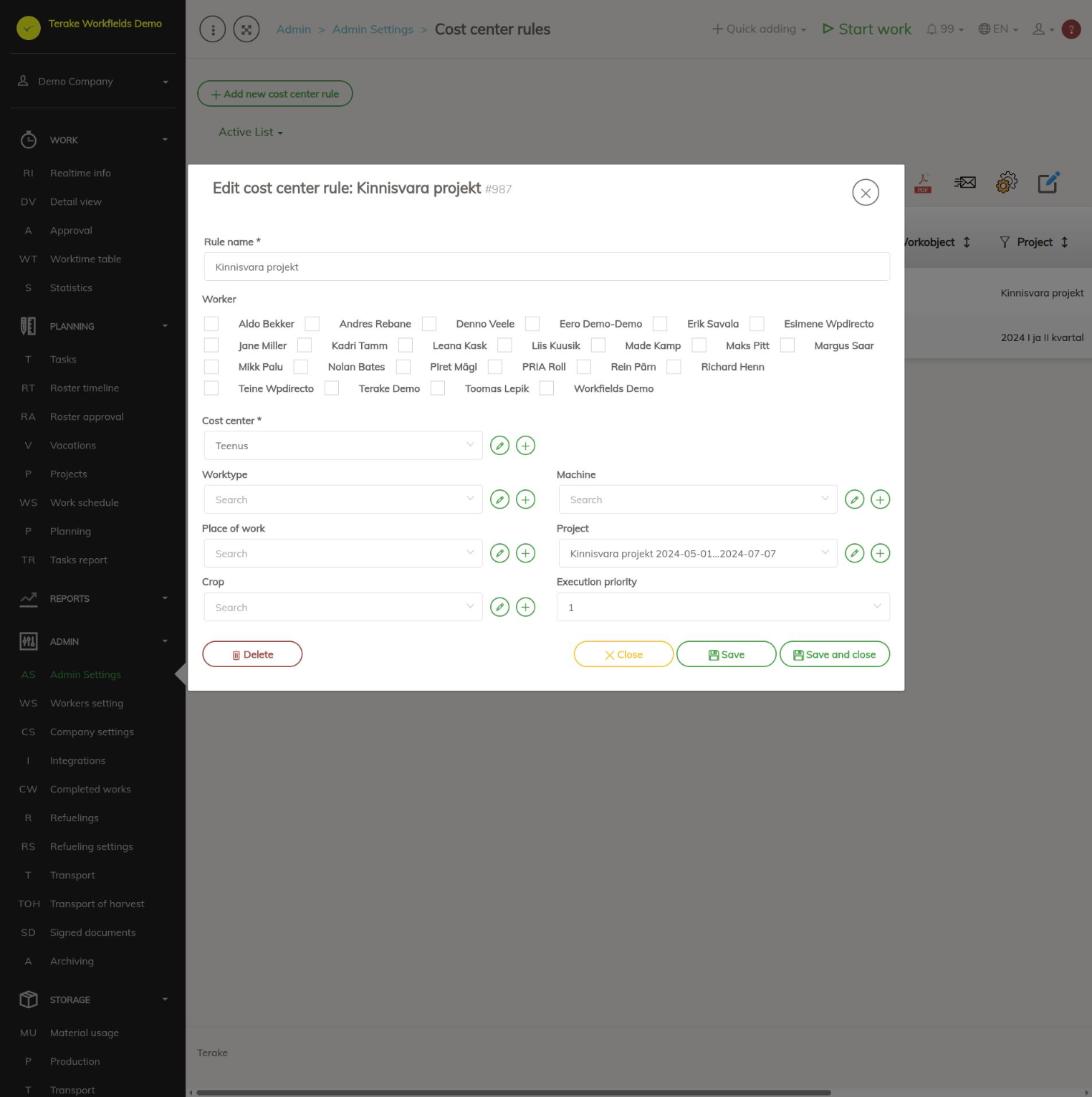
To delete a rule, open it and press “Delete”. To switch a rule off temporarily, archive it with “Bulk edit parameters”; archived rules are not applied.
When a rule is applied
- When work is finished: if the work has no cost center yet, a matching rule is looked for. If several rules match, the rule with the lower “Execution priority” number is applied. The “Crop” condition matches when the crop selected for the field for that season is the rule’s crop.
- Every night: work that started within the last 5 days, ended at least half an hour ago and has no cost center is checked. This check ignores the crop, and the rule must have at least one other condition (worker, worktype, machine, place of work or project).
- A rule does not change a cost center that is already set. If the worker chose the cost center, or it came from a plan or a shift, it stays.
Automatic rules for projects
When a cost center is selected for a project on the Projects page, Terake creates a rule itself. Its name is the project name and its only condition is that project. When the project’s cost center changes, the rule’s cost center changes too; when the cost center is removed, the rule is deleted. You can see these rules in the same list.
Who can see and change it
The page is in the Admin menu and opens only for the “Administrator” role, who can add, change and delete the company’s cost center rules. No other role gives the right to change cost center rules, and the page does not open for other roles.
Tips
- If a rule is not applied, check that all its conditions match the work, that the rule is not archived, and that no rule with a lower priority number matches first.
- Give a more general rule (fewer conditions) a higher priority number, so that the more specific rules are applied first.
- Cost centers are managed on the Cost centers page.
API calls on this page
For integrations and AI assistants: this page uses the following Terake API calls. The full description is in the API reference.
When the page opens:
GET /api/costaccountrules– CostAccountRule collection
Adding, changing and deleting (from the API description):
DELETE /api/costaccountrules/{id}– Delete CostAccountRule by ID or UUIDPOST /api/costaccountrules– Create new CostAccountRulePUT /api/costaccountrules/{id}– Modify CostAccountRule
Other calls from this screen’s dialogs and actions (from the web client’s code):
GET /api/costaccountrules/{id}– CostAccountRule by ID or UUID