The “Faults and problems” page is where faults of vehicles and other machines and of work objects are registered and followed. In the transport module this is where you see the vehicle faults reported by drivers, mark how serious they are and record when a fault was repaired. Drivers can report faults in the mobile app; they arrive in the same list.
Page layout
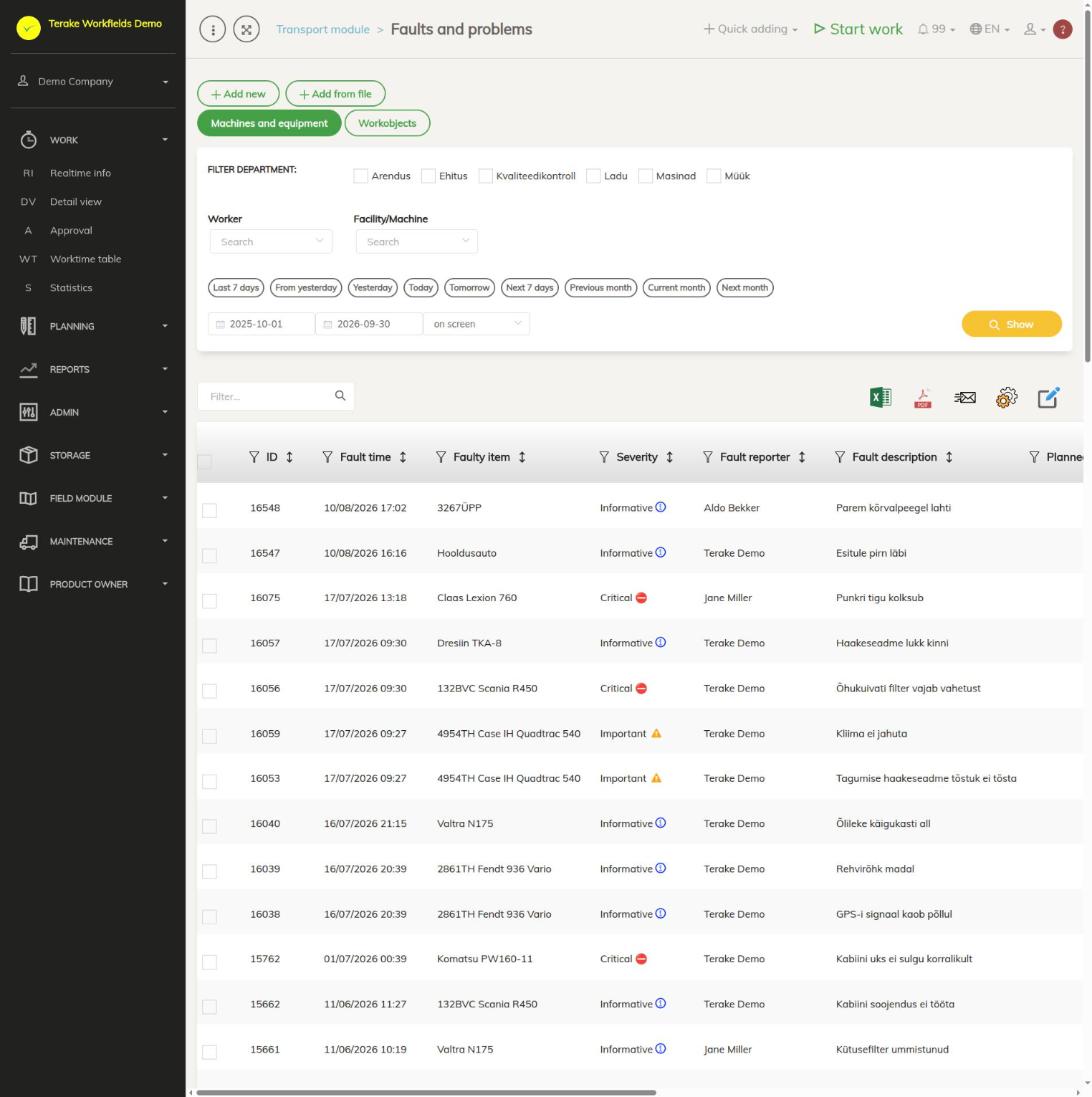
- The buttons “Machines and equipment” and “Workobjects” choose whether the list shows faults of vehicles and machines or of work objects.
- Filters: “Filter department”, “Worker” (the fault reporter or the person responsible for maintenance), “Facility/Machine” and the period. The list shows faults that started in the period and earlier faults that are not repaired yet. Press “Show”.
- Columns: “ID”, “Fault time”, “Faulty item”, “Severity”, “Fault reporter”, “Fault description”, “Planned start”, “Planned end”, “Actual resolving time”, “Repairer notes” and “Fault status”.
- Click a row to open the fault.
“Severity” is “Informative”, “Important” or “Critical”. “Fault status” is “Registered” (no repair planned), “Planned” (the fault has a repair work), “In progress” (the repair has a task) or “Closed” (“Actual resolving time” is filled in).
How to register a vehicle fault
- Press “Add new”.
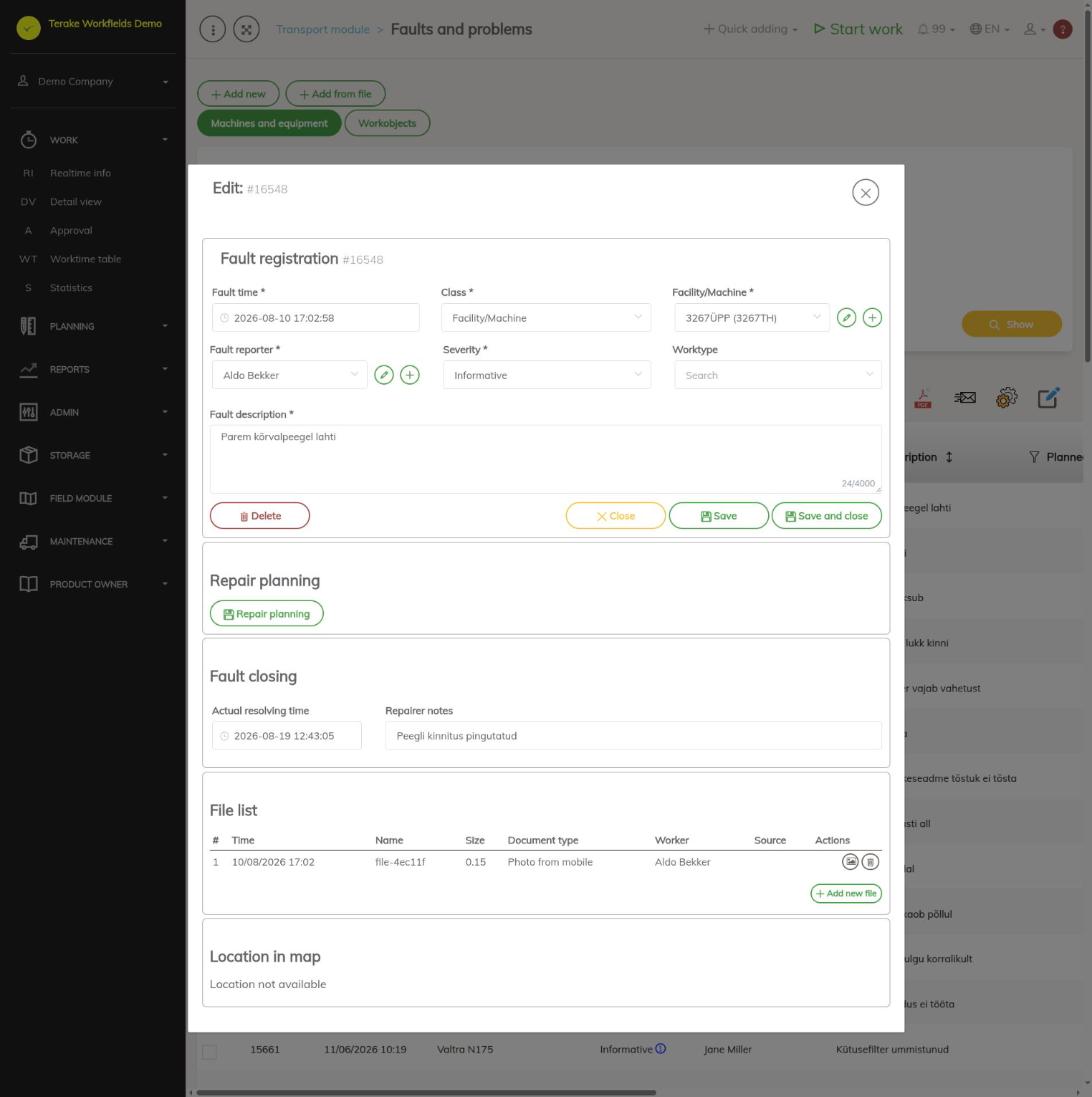
- Fill in “Fault time” and select “Facility/Machine” as the “Class”.
- In the field “Facility/Machine” select the faulty vehicle, in “Fault reporter” the driver or other reporter, and the “Severity”.
- Describe the fault in “Fault description”. If needed, select the “Worktype”.
- Press “Save”. After that you can add files, for example photos, in the section “File list”.
An e-mail notification about a new fault is sent to the fault reporter, to the person responsible for the vehicle’s maintenance and the responsible person, to those who have planned work with this vehicle in the next 24 hours, and to employees with the role “Dispatcher”. A task about the fault is created for the person responsible for maintenance.
How to close a fault
- Open the fault from the list.
- In the block “Fault closing”, fill in “Actual resolving time” and, if needed, “Repairer notes”.
- Press “Save and close”. The fault status becomes “Closed”.
Repair planning
In the block “Repair planning”, the button “Repair planning” creates a repair work to fix the fault: select the “Responsible person”, “Planned start” and “Planned end” and save. Repair works are managed further in the maintenance module, see Faults and problems (maintenance) and Repair works.
Who can see and change it
The transport module is shown to a passenger transport company, and there only to the role “Administrator”. “Administrator”, “Dispatcher” and “Vehicle service” can add and change faults; the last two do it on the same page of the maintenance module. In the mobile app a driver sees the faults of the vehicles on his or her journey forms.
Tips
- If the fault was reported in the mobile app and the location was known, the fault window shows in the block “Location in map” where the fault was reported.
- When you delete a fault, Terake shows before you confirm what will happen to the fault’s tasks and repair.
- The vehicles’ journey forms are on the page Journey forms.
API calls on this page
For integrations and AI assistants: this page uses the following Terake API calls. The full description is in the API reference.
When the page opens:
PUT /api/appsettings/{key}– Saves one application setting by keyGET /api/faults/facility– Faultitem collection of facilities
Other calls from this screen’s dialogs and actions (from the web client’s code):
DELETE /api/faultitems/{id}– Delete Faultitem by IDDELETE /api/repair-cases/{id}– Delete InspectionCase by ID or UUIDGET /api/faultitems/{id}/delete-preview– What deleting a Faultitem takes with itGET /api/faultitems/{id}– Faultitem by IDGET /api/faultitems– Faultitem collectionGET /api/faults/facility/{faultitem_consumer_id}– Faultitem collection of one facilityGET /api/faults/workobject/{faultitem_consumer_id}– Faultitem collection of one work objectGET /api/faults/workobject– Faultitem collection of work objectsGET /api/repair-cases/{id}– InspectionCase by ID or UUIDGET /api/integration-faults– Gobus fault messagesPOST /api/faultitems– Create new FaultitemPOST /api/repair-cases– Create new InspectionCasePUT /api/repair-cases/{id}– Modifies InspectionCase