The worktime table shows the workers’ hours by day and by type of hours: day and night hours, norm hours and overtime, weekend and public holiday hours, and absences. It is the source data for the accountant’s work time accounting and monthly summary. The table shows the scheduled work time and the actual work time side by side.
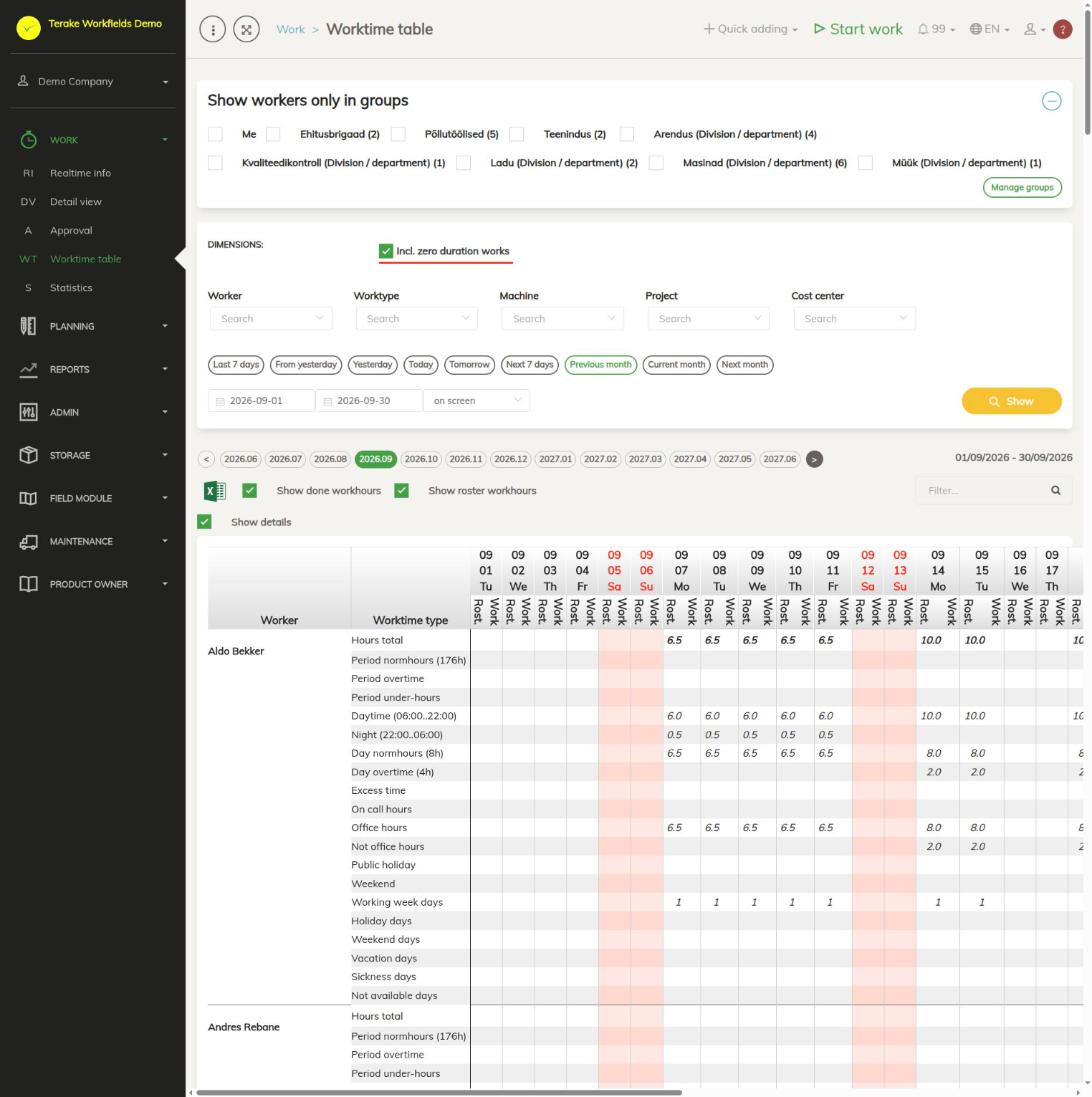
Page layout
- “Show workers only in groups” – select the worker groups or departments whose hours you want to see. “Me” shows only your own hours. With the “Manage groups” button you can create and change groups.
- “Dimensions”: “Incl. zero duration works” and the filters “Worker”, “Worktype”, “Machine”, “Project” and “Cost center”.
- Period – the period buttons or dates and the “Show” button. The month buttons (for example 2026.09) quickly select a whole month.
- Display options – “Show done workhours”, “Show roster workhours” and “Show details”. If “Show details” is not ticked, each worker has only the “Hours total” row.
- The Excel icon downloads the table as an Excel file. The search field on the right filters workers by name.
Each day has two columns: “Rost.” (work time in the schedule) and “Work” (actual work time). Weekends and public holidays are marked with a red date and a pink background. At the end of the table are the columns “Time by roster” and “Actual worktime” with the totals for the whole period.
Each worker has these rows:
- “Hours total”.
- “Period normhours”, “Period overtime” and “Period under-hours” – the period summary, shown in the total column. If the worker has summarised working time accounting, there are also the rows “Summarised normhours” and “Summarised overtime”, and the summarised period is shown under the name.
- Parts of the day, for example “Daytime (06:00..22:00)” and “Night (22:00..06:00)”.
- “Day normhours” and “Day overtime” – in brackets are the length of the standard working day and the number of hours counted as daily overtime. Time beyond that is on the “Excess time” row.
- “On call hours” (if the company uses them), “Office hours” and “Not office hours”, “Public holiday hours” and “Weekend hours”.
- Day counts: “Working week days”, “Holiday days”, “Weekend days”, “Vacation days”, “Sickness days” and “Not available days”.
- If the period has public holiday night hours, there are also the rows “Regular night” and “Holiday night”.
How to make the monthly worktime table
- Check that the month’s works have been approved. The table shows actual work time only from approved works. You can see unapproved works on the Approval page.
- Select the month, for example “Previous month” or a month button, and if needed a worker group or department.
- Press “Show”.
- To check the hours of a day, click the hours in the “Work” column on the “Hours total” row. The list of works for that day opens, where you can open and correct a work.
- Download the table with the Excel icon and pass it on to the accountant.
Who can see it
The menu item is visible to the roles “Administrator”, “Approver” and “Observer”. “Administrator” and “Observer” see all workers. Others see their own hours and those of their subordinates and of the workers they approve. They are not shown data older than the first day of the month that started three months ago.
Tips
- If a worker’s hours are missing, check whether their works have been approved and whether they belong to the selected group or department.
- The scheduled work time column “Rost.” is filled from the work schedule, which is made under planning.
- The same table also opens with the “Worktime table” button on the Detail view and Approval pages.
API calls on this page
For integrations and AI assistants: this page uses the following Terake API calls. The full description is in the API reference.
When the page opens:
GET /api/worker_groups– All WorkerGroups listGET /api/workdonehours– Each worker's hours in the period by hour type: norm, overtime, night etc
Other calls from this screen’s dialogs and actions (from the web client’s code):
DELETE /api/rosteritems/{id}– Delete Rosteritem by ID or UUIDGET /api/geometry/workobject/{id}– Geometry of one workobject.GET /api/location/device/workdone/{workdone_id}– Device location track recorded during one workdoneGET /api/location/facilities/history– Location history of a facility over a periodGET /api/workdonehours/{period}– Each worker's hours in the period by hour type: norm, overtime, night etcGET /api/workdones/{id}– Workdone by ID or UUIDPOST /api/rosteritems/{id}– Creates or modifies a Rosteritem (Scheduled Work or an absence). Returns an array of itemsPOST /api/signed-document-pdf– Renders a signed document as a PDFPUT /api/workdone/approve/{id}– Approves the WorkdonePUT /api/terake-relations– Replaces the relations between one Terake object and a set of objects of another typePUT /api/workdone/approve_client– Lets a customer approve or reject a Workdone through the token link sent to them