On this page you start and finish your work. While the work is in progress, Terake counts the time, and later the work appears in your work history and goes to your manager for approval.
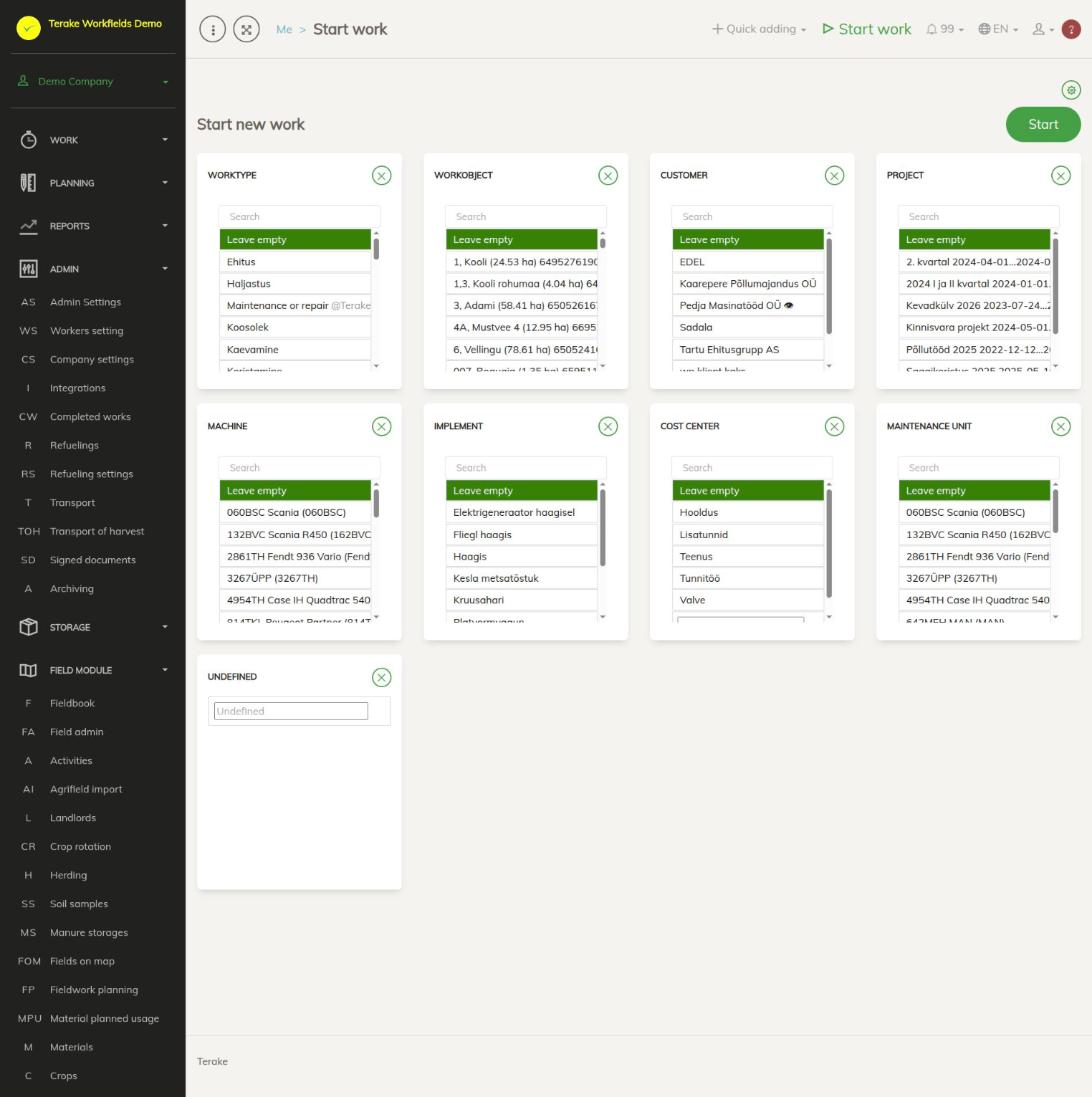
Page layout
When you have no work in progress, you see the heading “Start new work”, the green “Start” button and the selection cards. Each card has a “Search” field and a list. The row marked in green is selected. By default “Leave empty” is selected on every card.
- “Worktype”: what work you are doing, for example ploughing or a meeting.
- “Workobject”: the place where you work, for example a field or a construction site.
- “Customer”: who the work is done for.
- “Project”: the project the work belongs to.
- “Machine”: the vehicle or machine you work with.
- “Implement”: the implement behind the machine, for example a harrow or a trailer.
- “Cost center”: the cost center the work time is booked to.
- “Maintenance unit”: the machine or equipment you are servicing or repairing.
No card is required. Select only what your company needs.
How to start work
- Press “Start work” in the top menu bar, or select “Start work” under your name in the menu on the left.
- On each card you need, select the right row. If the list is long, type a few letters of the name in the search field.
- If the list shows the message “Only some shown. Use search.”, the list has more rows than fit on the screen. Search by name.
- Press “Start”.
If there is no suitable row, type the name in the last row of the list, “Add new”. When the work starts, the new name is added to the company’s list. If a row with the same name already exists, that row is used.
If you open the page through a QR code, the selection that matches the code is already made.
How to view and change the work in progress
While the work is in progress, the page shows the heading “My ongoing work”. The card shows the work’s duration, start time and work name. In the top menu bar a running clock replaces the “Start work” button. Pressing the clock brings you back to this page.
If the duration button turns red, the work has lasted more than 8 hours and 20 minutes. Check whether you forgot to finish the work.
- Press “Edit ongoing work”.
- Change the details you need on the form, for example the work name, machine or additional info, and save.
- Press “Back” to return to the work in progress.
How to finish work
Work is finished on the same page.
- Open “Start work” or press the running clock in the top menu bar.
- Press “Stop ongoing work”.
After finishing, you see the selection cards again and can start the next work. You find the finished work on the My work history page.
While work is in progress, the selection cards are not shown. To start a new work, finish the previous one first. Work started in the mobile app is also shown here and can be finished here.
Hiding cards
If you do not need a card, press the cross button in the top right corner of the card and confirm. The card disappears from your view. To bring a hidden card back, use the gear button at the top right: in the “Displayable data fields” dialog, tick the cards you want and press “Save and close”.
Tips
- Finish the work as soon as it is done. If you close the browser window or log out while work is in progress, Terake reminds you that the work must be finished later.
- If you forgot to finish a work and it has lasted more than 28 hours, it is usually shortened to 24 hours when it is finished. See also automatic processes that affect work duration.
- A wrong start or end time can be corrected later by your boss, an approver or an administrator.
API calls on this page
For integrations and AI assistants: this page uses the following Terake API calls. The full description is in the API reference.
When the page opens:
GET /api/search/{classificator_type}– Objects of one classificator type for filling drop-down lists
Other calls from this screen’s dialogs and actions (from the web client’s code):
POST /api/startwork– Starts work – creates an open Workdone for the calling workerPUT /api/stopwork/{id}– Stops Workdone