My work history shows the work you have done yourself in the selected period: when each work started and ended, how long it lasted and whether it has been approved.
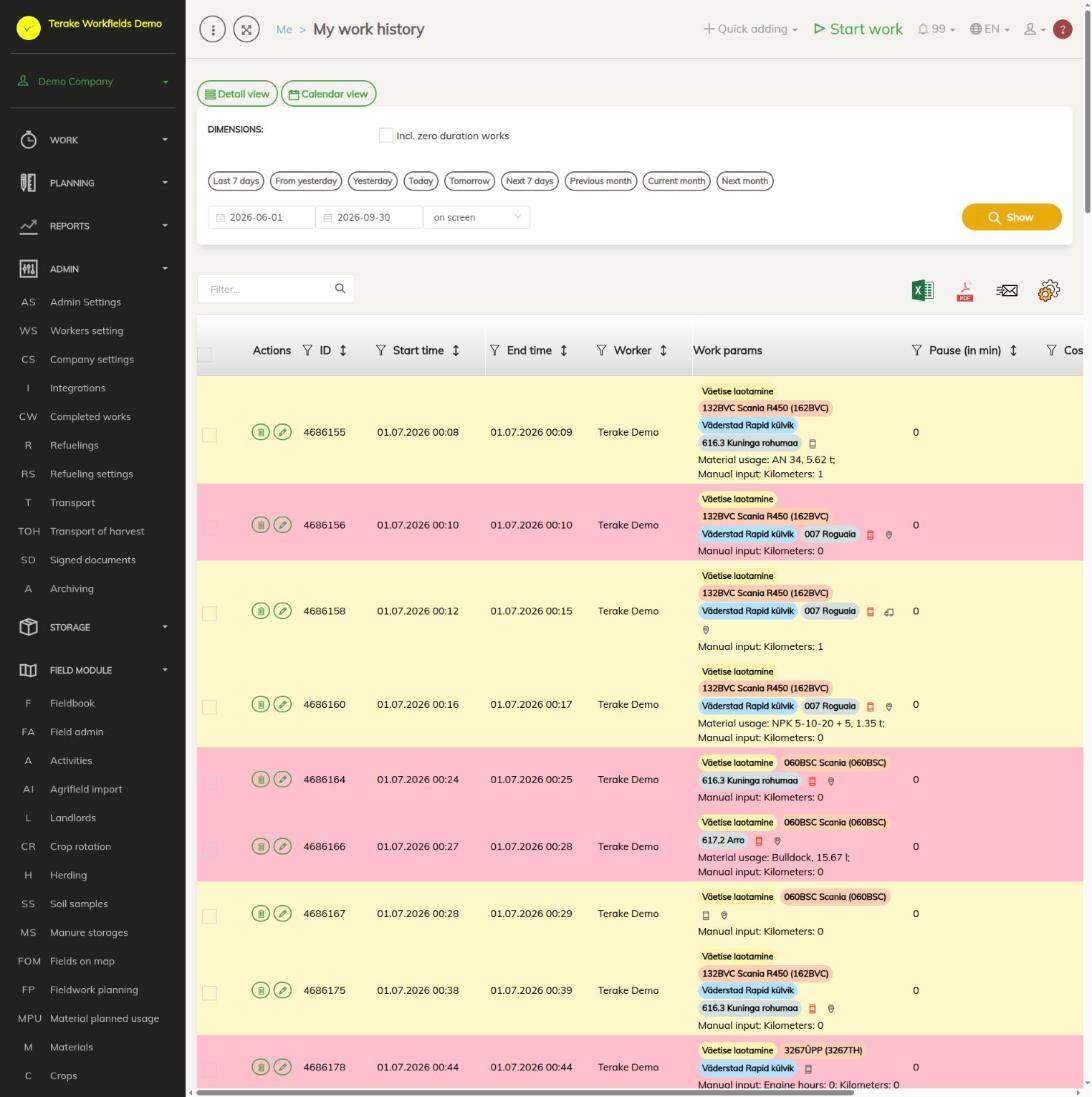
Page layout
At the top of the page there are two buttons for switching the view:
- “Detail view”: the list of works, one work per row.
- “Calendar view”: hours day by day.
The detail view table has the columns “ID”, “Start time”, “End time”, “Worker”, “Work params” (work name, machine, implement, workobject, customer and more), “Pause (in min)”, “Cost center”, “Duration” and “Approved”. Use the field above the table to filter the list, and the icons to download the table as an Excel or PDF file.
The row colour tells you that a work is worth checking:
- yellow: the work lasted less than 5 minutes or more than 12 hours;
- red: the work lasted less than 1 minute or more than 24 hours, or overlaps in time with another work of yours.
How to view your works
- Select the period: press one of the quick buttons (for example “Current month”) or select the start and end date.
- If you also want to see works with zero duration, tick “Incl. zero duration works”.
- Press “Show”.
How to read the calendar
Select “Calendar view”. Under each day there are two numbers in hours: red is unapproved hours, green is approved hours. On a day when you were sick or on vacation, the cell shows the matching abbreviation. Click the hours of a day to see the works of that day. The row also has “Total” and “Days at work”, that is, on how many days you had work.
Who can see and change it
The page always shows only your own works. The edit and delete buttons are visible to users with the “Self planner” or “Administrator” role. You can change your own work as long as it has not been approved. Approved works can be corrected by your boss, an approver or an administrator.
Tips
- The page shows works from the start of the month three months ago. Older works are not shown here, even if you select an earlier period.
- If you find a wrong work and cannot change it yourself, tell your boss.
- You start a new work on the Start work page. A summary of your hours is on the Statistics page.
API calls on this page
For integrations and AI assistants: this page uses the following Terake API calls. The full description is in the API reference.
When the page opens:
GET /api/workdonehours– Each worker's hours in the period by hour type: norm, overtime, night etcGET /api/workdones– Workdones detailed list by period
Adding, changing and deleting (from the API description):
DELETE /api/workdones/{id}– Delete Workdone by ID or UUIDPOST /api/workdones/{id}/files– Add new file to parent objectPOST /api/workdones/{wdid}/materialusages– Creates new MaterialUsage for workdonePOST /api/workdones– Create new WorkdonePOST /api/workdones/{wdid}/recalcmaterialusages– Recalc material usage for workdonePUT /api/workdones/{id}– Modify Workdone
Other calls from this screen’s dialogs and actions (from the web client’s code):
GET /api/geometry/workobject/{id}– Geometry of one workobject.GET /api/location/device/workdone/{workdone_id}– Device location track recorded during one workdoneGET /api/location/facilities/history– Location history of a facility over a periodGET /api/workdonehours/{period}– Each worker's hours in the period by hour type: norm, overtime, night etcGET /api/workdones/{id}– Workdone by ID or UUIDPUT /api/workdone/approve/{id}– Approves the Workdone