The Inventory page shows the machines and equipment you currently have or are responsible for. Here you mark when you start using a device, finish using it, or take it back into storage. This way it is always known who has each device. The page is in the menu under your name (“Inventory”).
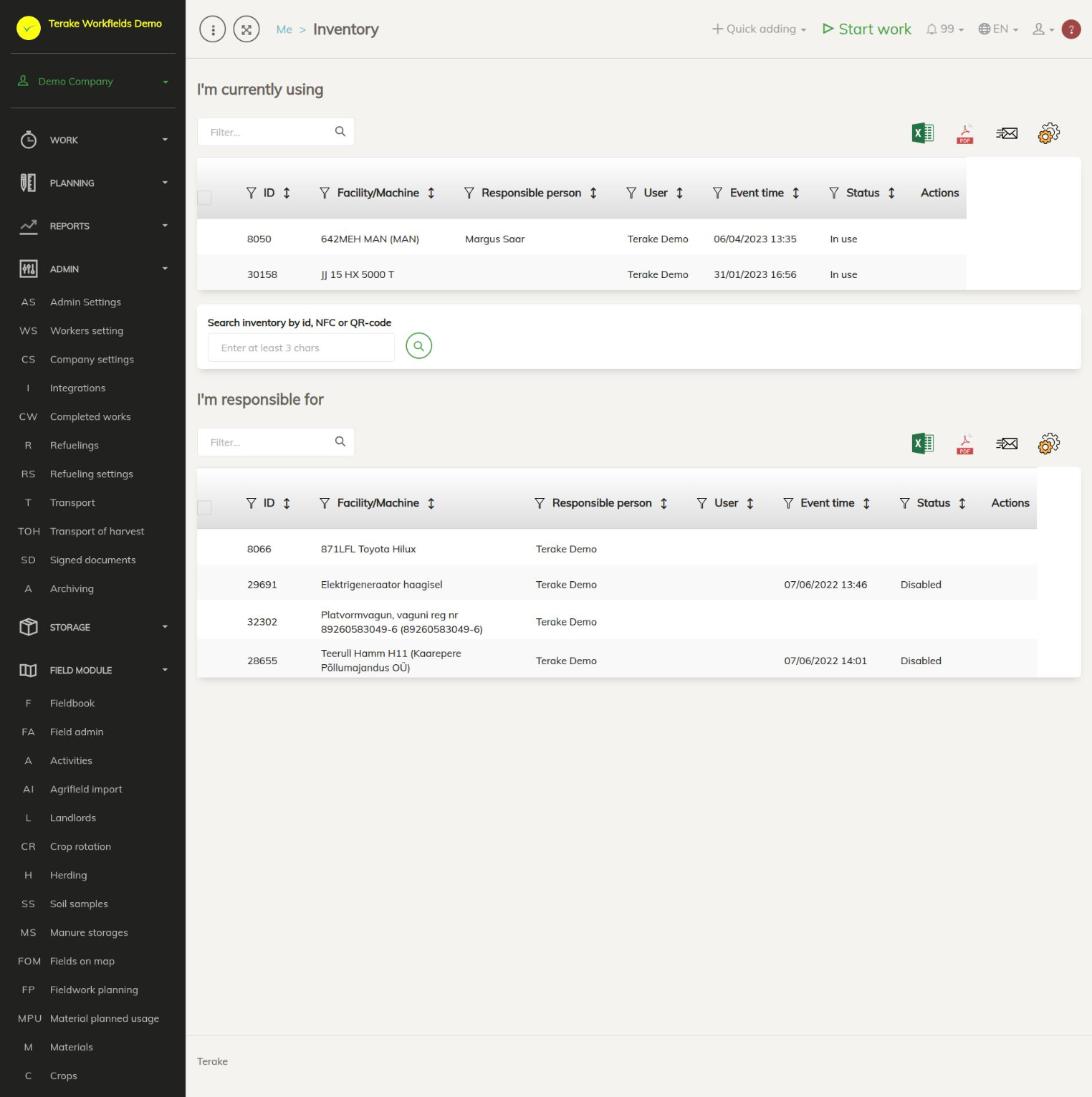
Page layout
- “I’m currently using”: devices whose last user is you and whose status is “In use” or “Handing over”.
- “Search inventory by id, NFC or QR-code”: a search field for finding any device of your company.
- “I’m responsible for”: all devices for which you are the “Responsible person”, no matter who has them at the moment.
Both tables have the columns “ID”, “Facility/Machine”, “Responsible person”, “User” (who had the device last), “Event time” (the time of the last inventory event), “Status” and “Actions”. Above each table there is a filter field and buttons for downloading the table to Excel or PDF, sending it by e-mail and choosing columns.
A device can have one of four statuses:
- “In storage”: the device is in storage and can be taken into use.
- “In use”: someone has the device.
- “Handing over”: the user has finished using it, but the responsible person has not yet taken it into storage. The next worker can also take it into use.
- “Disabled”: the responsible person has disabled the use of the device.
The “Actions” column at the end of a row has only the buttons that the device’s current status allows. The buttons show an icon; hold the mouse over a button to see its name.
How to take a device into use
- In the “Search inventory by id, NFC or QR-code” field, enter the device’s ID, registration number, NFC code or QR code text. Enter at least 3 characters.
- Press the search button (magnifying glass) next to the field.
- The details of the device found appear below the search: “Facility/Machine”, “Responsible person”, “User”, “Event time” and “Status”. If no device is found, you see the message “No items found”.
- Press “Start using” (the button text in the search result starts with the event number). This button is there when the device is “In storage” or “Handing over”. The device appears in the “I’m currently using” table.
The search finds only active (not archived) devices. If a device has no responsible person, there are no buttons under the search result: such a device cannot be used through the inventory.
How to finish using a device
- Find the device in the “I’m currently using” table.
- Press “Finish using” at the end of the row. The button is there only when the device’s status is “In use”.
- The device’s status becomes “Handing over”. The device stays in your list until the responsible person takes it into storage or the next worker takes it into use.
How to manage devices as the responsible person
In the “I’m responsible for” table, the end of each row has the buttons that the device’s status allows:
- “Enabling”: takes a disabled device back into use; the status becomes “In storage”. A device that has no inventory events yet has only this button: this is how you bring a new device under inventory.
- “Disabling”: disables the use of a device that is in storage; the status becomes “Disabled”. Nobody can take a disabled device into use.
- “Inventory”: records that you have checked that the device exists. The status and user do not change; only the “Event time” changes. The button is there in the statuses “In storage”, “In use” and “Disabled”.
- “Take to storage”: takes the device back from its user; the status becomes “In storage” and the user is removed. The button is there in the statuses “In use” and “Handing over”.
- “Edit”: opens the device’s details (the machine or equipment form). The button is there when the device already has at least one inventory event.
You can do the same through the search: when you search for a device for which you are the responsible person, all buttons that the device’s status allows appear under the search result.
How to give a device to another worker
- In the “I’m responsible for” table, press “Edit” on the device’s row.
- Open the “Log” tab on the form.
- In the “User” field, select the worker you are giving the device to.
- Press “Start using”. The device goes into the selected worker’s use.
Only a device that is “In storage” or “Handing over” can be given this way. If someone else has the device, take it into storage first.
The “Log” tab also shows the history of the device’s inventory events: when, who and which event changed the device’s status.
Who can see and change it
- Every worker can see the page, except users with the “ARIB employee” role.
- Any worker can take a device into use when it is “In storage” or “Handing over”.
- Only the person who has the device can finish using it.
- Only the device’s “Responsible person” can enable, disable, take into storage and do inventory.
- The responsible person and an “Administrator” can give a device to another worker.
Tips
- The administrator sets a device’s responsible person in the machine or equipment details, in the “Responsible person” field, see Machines and equipment. A device without a responsible person does not take part in the inventory.
- If an NFC code or QR code has been added to the device, you can also search by that code without knowing the ID.
- If the search finds several devices, you see a message and need to narrow the search, for example by entering the device ID.
API calls on this page
For integrations and AI assistants: this page uses the following Terake API calls. The full description is in the API reference.
When the page opens:
GET /api/inventory_user– List of Facilities logged in person is currently usingGET /api/inventory_owner– List of Facilities logged in person is currently owning
Other calls from this screen’s dialogs and actions (from the web client’s code):
DELETE /api/calendarevents/{id}– Deletes a calendar eventGET /api/facilities/enginehours-log/{id}– Facility engine hours and kilometers history from manual entryGET /api/facilities/{id}/files– List all files related with parent objectGET /api/facilities/telemetry-log/{id}– Facility engine hours and kilometers history from telemetry data logGET /api/facilities/{parent_id}/part/{id}/measure_history– Facility Part check historyGET /api/facilities/{parent_id}/part– Facility Parts collectionGET /api/facilities/{parent_id}/part-with-history– Facility Parts collection with measurement historyGET /api/faults/facility/{faultitem_consumer_id}– Faultitem collection of one facilityGET /api/fuelfillings/{id}– FuelFilling by ID or UUIDGET /api/fuelfillings/facility/{facility_id}– Fuel fillings recorded against one facility.GET /api/inspections/facility/{consumer_id}– InspectionCase collection of one facilityGET /api/inspections– InspectionCase collectionGET /api/inventory_search/{query}– Search FacilityGET /api/inventorylog/{id}– Get Facility Inventory LogGET /api/pre-usage-check/facility/{consumer_id}– Pre-usage checks of one facilityGET /api/relations/{object_type}/{object_id}– Returns the objects related to one Terake objectGET /api/integration-partner-data/{terake_object_code}/{object_id}– Integration partner id's related to objectPOST /api/calendarevents/{id}– Creates or modifies a calendar event attached to a parent objectPOST /api/facilities/integration– Registers a Facility reported by the integration serverPOST /api/facilities/log-mapping-event– Records a facility-mapping event sent by the integration serverPOST /api/inventory_facility/{facility_id}/{event_name}– Change Inventory status by registering eventPUT /api/facilities/{parent_id}/check/{id}– Measure Facility Part