In the cadastre form you add or change a single cadastral unit. The form opens on the Cadastres page with the “Add new” button or by clicking a cadastre, and also from the buttons next to the cadastre selection field in the field and agreement forms.
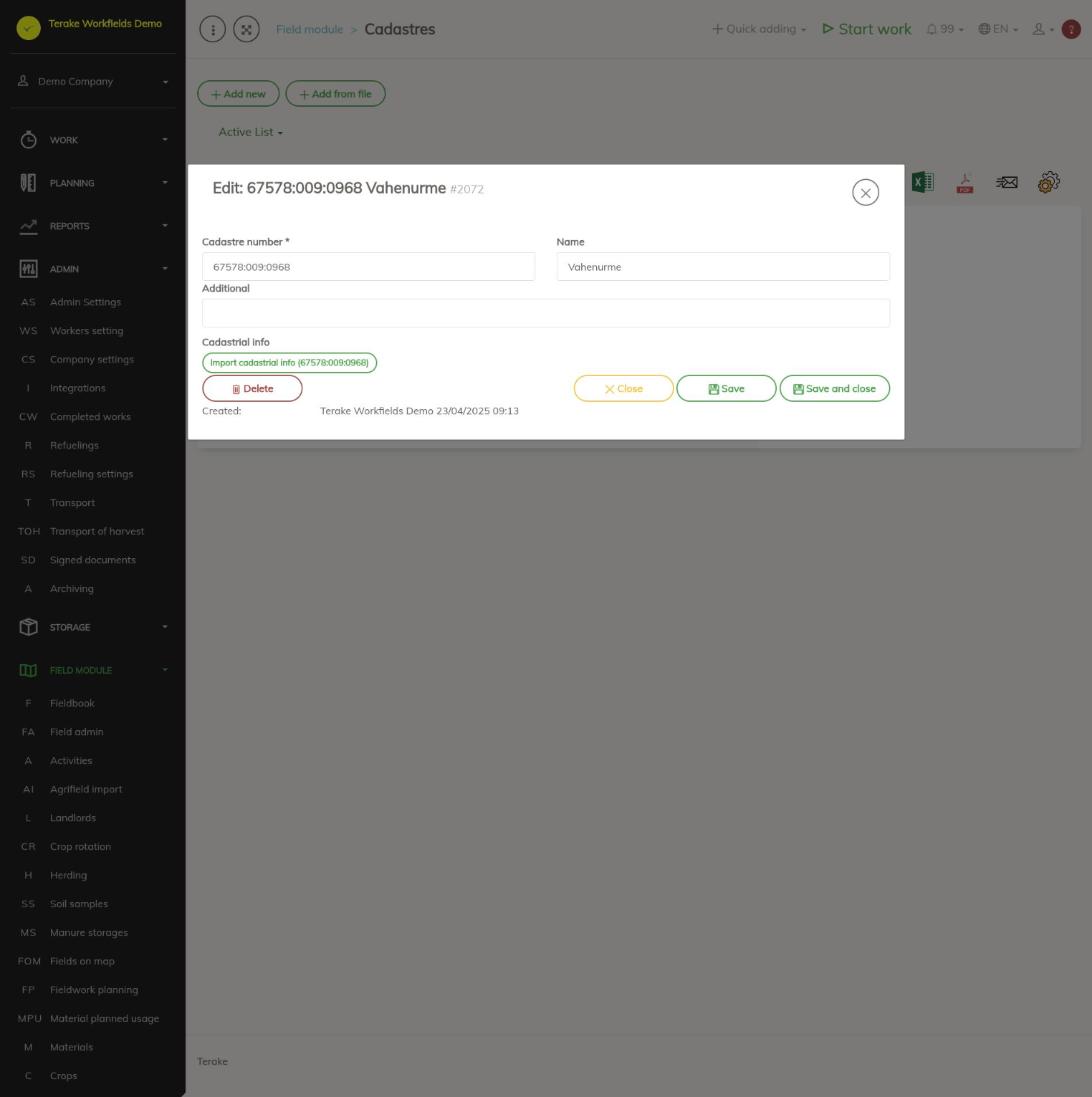
Form fields
- Cadastre number (required): the identifier of the cadastral unit in the form 12345:001:0010, i.e. five digits, colon, three digits, colon, four digits. A number in any other form cannot be saved.
- Name: the name of the cadastre shown in selection lists and in the “Cadastre name” column of the agreements table. If you leave it empty, it is filled with the address of the cadastral unit when the cadastre data is imported.
- Additional: free text, for example a note on how the cadastral unit is used.
- Cadastrial info: the “Import cadastrial info (number)” button brings the data and boundary of the cadastral unit with the entered number from the cadastral register. The data is shown in the form in the “Cadastral info” block. If the number is not found in the register, you see the message “Cadastral info not found”. The button can only be used when the cadastre number is in the correct form.
At the bottom of a saved cadastre form you can see who added the cadastre and when.
How to add a cadastre
- Enter the “Cadastre number”.
- Press “Import cadastral info” and check in the “Cadastral info” block that the right cadastral unit was found.
- If needed, change “Name” and add “Additional”.
- Press “Save” (the form stays open) or “Save and close”. “Close” closes the form without saving.
How to delete a cadastre
Open the cadastre and press “Delete”. You can only delete your own company’s cadastres.
Tips
- You add a field’s cadastres in the field form, in the “Cadastre number” field, see Field admin.
- If a field has exactly one cadastre, it is offered automatically when you link an agreement to the field.