On the “Company settings” page the administrator changes the company’s main data, the default values for new workers and the working day settings (norm hours and overtime hours, automatic pauses), and keeps the company’s files. The page also shows the company’s usage statistics for the selected period.
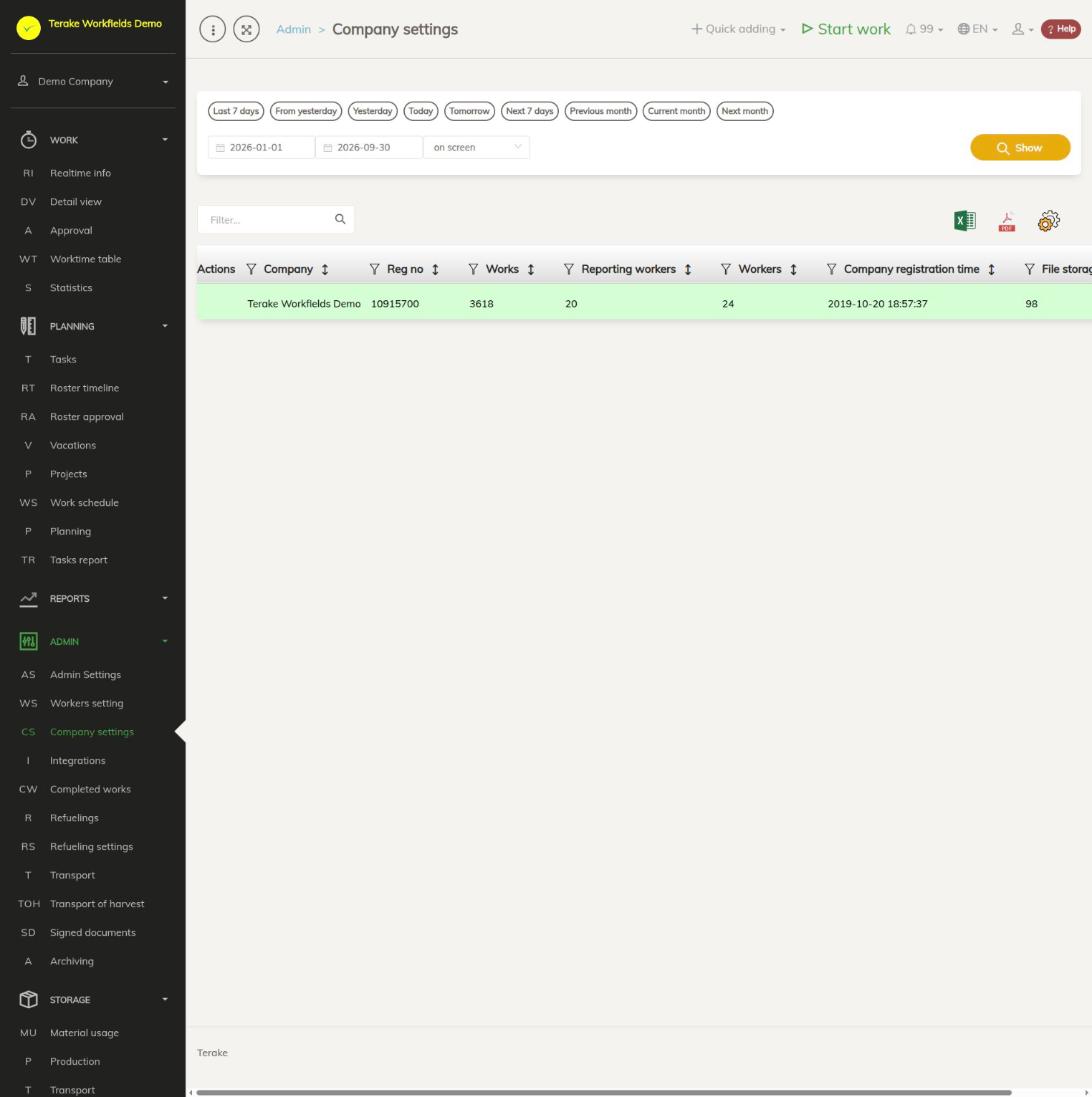
Page layout
- At the top is the period selection: quick buttons (for example “Previous month”, “Current month”) or a start and end date, then the “Show” button. The period can be up to 366 days long; for a longer period the message “Allowed max period length is 366 days” is shown.
- The table has one row, your company, with the columns “Company”, “Reg no”, “Works” (the number of works done in the period), “Reporting workers” (workers who reported works in the period), “Workers”, “Company registration time” and the file space used in megabytes.
- Above the table are a search field and buttons for downloading the table as an Excel or PDF file and for choosing columns.
- To change the settings, click the company row. The “Edit company settings” window opens with the tabs “Main data”, “Account data”, “Files”, “Working day settings” and “Devices”.
How to change the company settings
- Click the company row in the table.
- Select a tab and change the fields you need (see below).
- Press “Save” if you want to keep working in the window, or “Save and close”. “Close” closes the window without saving the changes.
Mandatory fields are marked with an asterisk: “Name”, “Country” and “Company type”. At the bottom of the window you can see when the company was added (“Created at”).
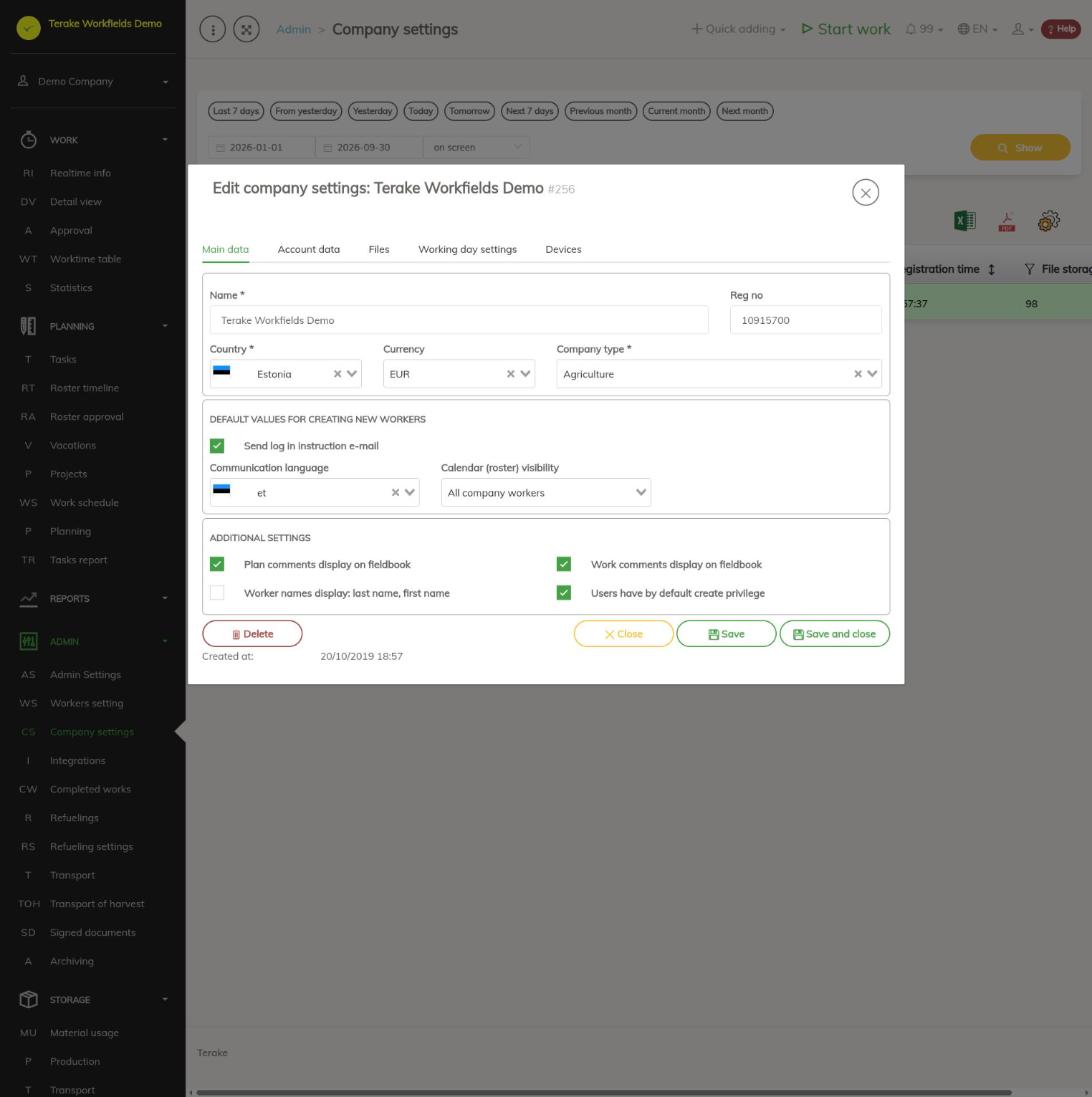
“Main data” tab
- “Name” and “Reg no”: used in the e-mails sent out from the company.
- “Country”: public holidays are calculated by this.
- “Currency”: the currency code shown in reports.
- “Company type”: an agricultural company gets the additional agriculture menus and settings.
Default values for creating new workers
- “Send log in instruction e-mail”: when this is ticked, new workers who have an e-mail address receive an e-mail with login instructions and links for downloading the mobile app when they are added or imported from a file. The instructions can also be sent later from the worker form with the button of the same name.
- “Communication language”: notifications and e-mails are sent to the workers in this language.
- “Calendar (roster) visibility”: whose roster the workers can see. This can be changed for each worker separately on the Worker settings page.
Additional settings
- “Plan comments display on fieldbook” and “Work comments display on fieldbook” (agricultural companies only): whether the fieldbook shows the comments of plans and works.
- “Worker names display: last name, first name”.
- “Users have by default create privilege”: users can add new entries to selection fields (for example work object, machine, client) and change and delete an entry they added themselves within 48 hours.
“Account data” tab
This tab holds the account and billing information: “All invoices are paid”, “Test period length (days)”, whether the registry number has been checked, the largest file size allowed for upload (1–20 MB) and the file space used by the company. These fields are changed by Terake; the administrator can only view them.
“Files” tab
Here you keep the company’s general files, for example contracts or instructions. The list shows when each file was added, its name, its size in megabytes, the “Document type” and who added it. The file space used by the company is shown at the top of the tab.
- Press “Add new file”.
- Press “Select file” and choose a file on your computer. The window shows the file’s name and size.
- Choose a “Document type” if you wish.
- Press “Upload file”.
If the file is larger than the account allows, “max allowed size is …” is shown next to the size and the “Upload file” button cannot be pressed. You can view an image with the image icon and download other files with the file icon. To delete a file, press the trash can icon.
“Working day settings” tab
These settings affect working time accounting and the automatic processes that change the duration of works. To save the norm hours and overtime hours, press “Save” on the same tab.
“Norm work hours per day”: the number of norm hours in a working day. It is used to calculate the norm hours of a period (with the shortened days before public holidays) and to separate norm hours from overtime in the working time reports. You can enter a decimal number, for example 8,5 means 8 hours and 30 minutes.
“Overtime hours per day”: when both “Norm work hours per day” and “Overtime hours per day” are filled in (for example 8 + 4), Terake stops works that were left running and started more than 24 hours ago so that the work’s duration becomes the sum of norm hours and overtime hours. For example, with 8 + 4 the work is stopped 12 hours after it started. If one of these fields is empty, a work left running gets a duration of 24 hours.
Automatic stopping runs every 4 hours and finds works that started more than 24 hours ago and have not been stopped. This gives a worker’s phone that was out of coverage for a while time to send the correct end time of the work. Between two runs a work may temporarily appear under “Realtime info” as up to 28 hours long, but automatic stopping still gives it the duration described above.
If the work was started from the roster, automatic stopping gives the work the duration planned in the roster and adds the pause from the roster to the work. For example, if the roster had the work at 8:00–17:00, the work was started at 8:11 and not stopped, Terake stops the work at 17:11.
Pauses: working day rules by which a missing pause is added to works automatically. To add a new rule, press “New”; change an existing one with the pencil. A rule has these fields:
- “Division / department” and “Worker group”: whom the rule applies to. If both are empty, the rule applies to the whole company. For a worker, the rule of their worker group is chosen first, then the department’s rule and then the company’s rule.
- “Workday duration”: the rule applies when the worker’s works of the day, including pauses, last longer than this. If several rules fit, the one with the longest “Workday duration” is used.
- “Duration of pauses”: how much pause there must be in a day in total. The missing pause is divided between the works according to their duration (no pause is added to works shorter than 30 minutes).
- “Min workday duration”: no more pause is added than would bring the working time below this value.
- “Fill gaps with pause”: gaps of more than 5 minutes between works are turned into pauses by extending the previous work.
Pauses are added every night to the stopped and unconfirmed works of the previous days; the last three days are checked again every night. Confirmed works are not changed. An automatically added pause and automatic stopping are shown in the work’s log.
More about the automatic processes: Automatic processes that affect work duration and Automated processes.
“Devices” tab
This tab lists the company’s mobile devices on which the Terake mobile app is used: the device name, the manufacturer and model with the Android version, the app version, “Serial number”, “Worker” and “Modification date”. From the list you can see, for example, who is still using an old version of the app.
How to delete the company account
- On the “Main data” tab, press the “Delete” button.
- The confirmation window asks “You are going to delete all company data! Are you sure?”. Press “Delete”.
Deleting removes all the company’s other workers and stops the works in progress. The company’s data is deleted for good after 180 days. Until then, the person who deleted the account sees the message “Company account is deleted” when logging in and can restore the account with the “Restore company account” button, but the deleted workers stay deleted.
Who can see and change it
The page is seen and the company settings are changed by the “Administrator”, for their own company only. The fields of the “Account data” tab are changed by Terake. The company account can be deleted by the administrator.
Tips
- If workers forget to stop works, fill in “Norm work hours per day” and “Overtime hours per day”; then a work left running does not become 24 hours long.
- Workers’ roles, departments and roster visibility are set on the Worker settings page.
- Integration settings (filling stations, telemetry, accounting) are on the Integrations page.
API calls on this page
For integrations and AI assistants: this page uses the following Terake API calls. The full description is in the API reference.
When the page opens:
GET /api/companystats– Usage counts for the caller's company over a period
Other calls from this screen’s dialogs and actions:
DELETE /api/companies/{id}– Delete Company by IDDELETE /api/workdayrules/{id}– Delete WorkdayRule by ID or UUIDGET /api/companies/{id}– Company by IDGET /api/companies– Company collectionGET /api/company_parameter/{parameter_code}/{id}– Retrieves Company parameter dataGET /api/devices– Company devicesGET /api/workdayrules/{id}– WorkdayRule by ID or UUIDGET /api/workdayrules– WorkdayRules collectionPOST /api/companies– Create new CompanyPOST /api/workdayrules– Create new WorkdayRulePUT /api/companies/{id}– Modifies CompanyPUT /api/workdayrules/{id}– Modify WorkdayRule